

A clear explanation of spatial input models for AR
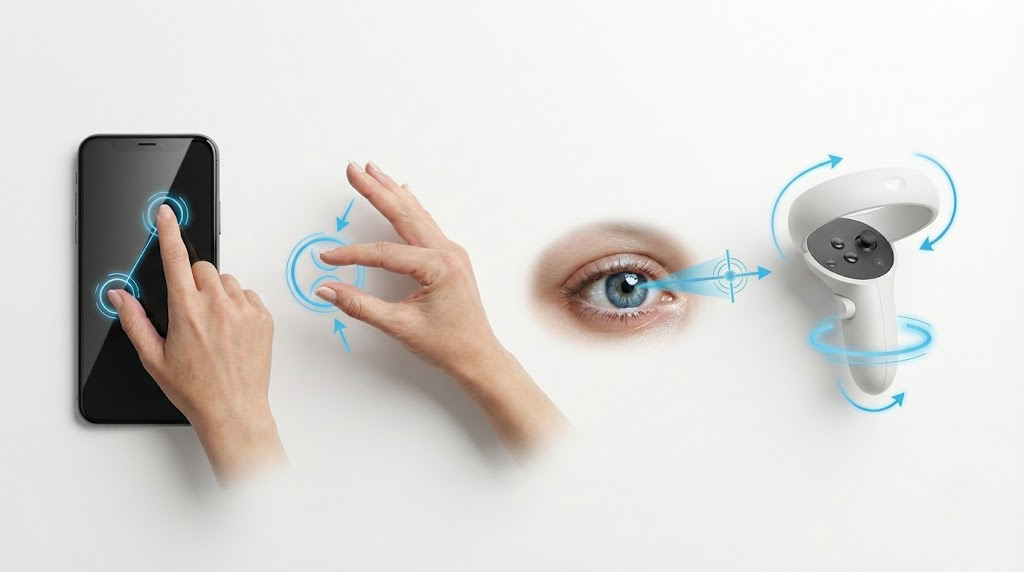
Spatial input models are the ways in which users can interact with virtual content inside a physical space. These techniques include taps, swipes, eye gaze, hand gestures, voice, controllers, and emerging neural interfaces.
Spatial computing gives users new ways that they can interact with digital content. Many spatial experiences can use mobile devices and traditional inputs like multitouch. AR headsets regularly have more embodied input methods. They combine 6DoF headset tracking with eye-tracking, hand-gestures, controllers, and voice. These all provide feedback to let a device understand the intent of a user and how they want to interact with the AR scene.
With eye gaze, where you look acts as a pointer. The system measures where your eyes focus and uses that position as an input target. Gesture recognition uses cameras and depth sensing to track your fingers and motion as you move them around. Controllers use accelerometers, gyroscopes, and optical tracking to understand 6DoF position and rotation. Voice models allow users to issue commands without touching anything.
Each input model has different strengths. Gaze is quick and works across distances. Hand tracking can be intuitive for selection and dragging content. These first two input methods are combined in the Apple Vision Pro to enable responsive highlighting and selection. Controllers like on the Meta Quest are great for fast movement and precise tracking. Multi-touch on phones and tablets remains familiar and accessible for many users.
People may wonder why so many input types are needed. The answer is that Spatial computing supports a wide range of tasks. No single input solves every use case or is perfect for every device.
Spatial input models make AR feel authentic. Rather than clicking through menus, you interact with the world. Because of this, many of the input methods emulate how we interact with our physical environment. And where possible, the input methods give you superpowers to reach across a space and perform tasks quickly.
Inputs for spatial computing unlock a variety of use cases. Design tools may rely on precise snapping, scaling, rotation, or drawing using controllers. Training simulations may benefit from hand tracking because users can perform real movements. Navigation and storytelling could benefit from voice interaction and question and answers. For each situation, users should be aware what device and input method they will be using.
Spatial input also influences the immersion that a user feels. When you reach out and press a digital button and it responds, the digital world feels tangible. When a panel highlights when you look at it, interfaces feel intelligent and aware. When a headset can respond to a small tap of your fingers to animate 3D content on the other side of the room, the experience feels magical.
Trace supports multiple spatial input models to allow all of your interactions to feel natural. On phones and tablets, users can use touch and multi-touch gestures to control their spatial content. On AR headsets, like the Apple Vision Pro, you can use gaze and pinch. On MetaQuest, you can use controllers or hand tracking.
Designers must be aware which input models are available on each device and how they will react with your digital content.
Gaze and pinch
Perfect for quick selections, lightweight UI, and distant interactions. Interfaces should respond subtly to gaze focus to not overwhelm the user. Activation should be reliable and clear.
Hand tracking
Works best with gestures that mirror real movement. Grabbing, pulling, pushing buttons, and tapping all feel natural.
Controllers
These provide high precision for creation, tools, and interactions that require accurate depth or quick motion. 6DOF controllers often have a select and a grab button to allow for different controls.
Touch and multi touch
Phones and tablets remain familiar and reliable input devices. Touch enables direct manipulation, pinch to scale, twist to rotate, and drag your finger to move objects around a space.
Voice
A key input when making 3D recordings or interacting with AI agents.
Inputs need to work hand in hand with UI to make sure that content is easy to highlight, select, and manipulate. Ensure that you are testing your experiences on any device you plan to deploy to.
• A user highlights a Spatial interface on the Apple Vision Pro with eye gaze and confirms their selection with a pinch.
• A Quest user grabs a virtual object using hand tracking, and when they let go, it is placed on a table right where they left it.
• A user sets up a Scene using the Trace Creator App and multi-touch on a phone to place 3D objects within their space.
• Gaze is primarily used for highlighting objects. It is one part of a multimodal system with pinch, controller or audio input to select.
• Hand tracking and controller tracking are less accurate in low light. Cameras need to be able to see your hands or controller to accurately know gestures and position.
• There isn't a single input method that is best for spatial computing. Just like in 2D where we have touchpads, keyboards, remote controls, game controllers and mice, 3D input has different tools for different scenarios.
Spatial input models define how users interact with virtual content in their space. When gaze, gesture, voice, controllers, and multi-touch work together and can be interchangeable, interfaces are intuitive and responsive on any device. With Trace, these various input methods are configured to work intuitively regardless of the device that you choose.
Learn about augmented reality or start creating your own experiences.